
How to Turn an Image into a Video with Native Audio
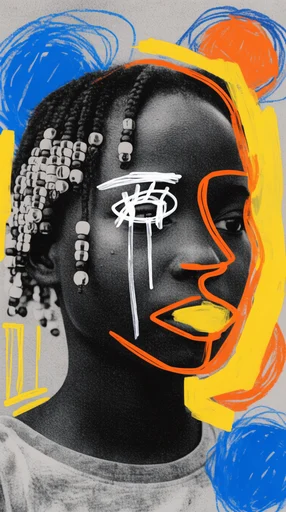
Why use i2v + native audio
One render replaces three: animation, voiceover, ambient mix. Veo 3.1 does all three in a single pass.
Step by step
1. Pick your source still
Best: clean composition, single subject, neutral expression. Avoid: motion blur, busy background.
2. Upload to Veo 3.1 image-to-video
Use forvideo.ai's Veo 3.1 i2v mode.
3. Prompt motion + audio together
The subject in the photo turns her head, smiles softly. She says, "welcome back." Soft room tone, light ambient music.
4. Render at 10s, 1080p
Default settings handle this well.
5. Trim and export
Trim dead frames, export as MP4.
What fails
- Source images with multiple faces — Veo confuses identity.
- Dialogue over 5 seconds — lip-sync breaks after second 4.
FAQ
Can I use any photo?
Yes, but you own the rights, and faces of real public people will be filtered.